
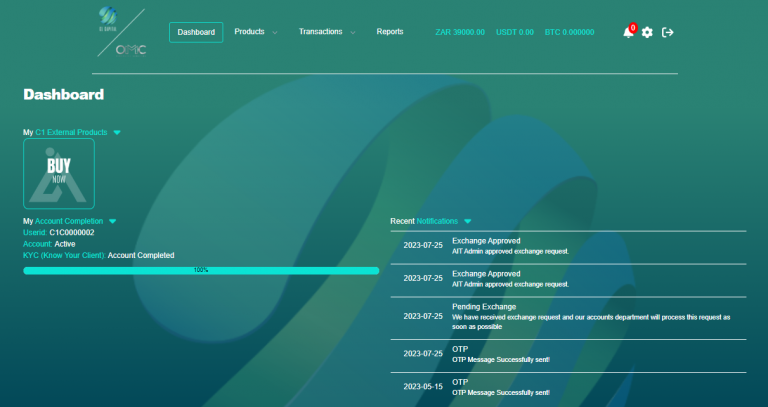
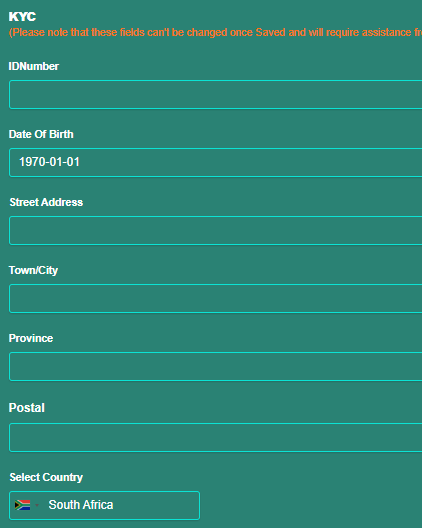
- Complete the required information. Please note that in the case of a company, the director’s information will need to be provided. This will include the ID number, date of birth, residential address, and source of income that will be used to fund the product. (Select from the dropdown options.)
- Upload a copy of the user’s ID, or in the case of a company, the director’s ID. (You can either drag and drop the ID or upload it from a file on your device.)
- Upload proof of address that is not older than three months. Acceptable documents include utility bills, cell phone statements, or any other accounts that reflect the residential address as registered on the system. (These documents can be dragged and dropped or uploaded from a file on your device.)
- If registering as a company, you will also need to upload the CIPC certificate and enter the company’s registration number.
- Click on “Save.” The KYC status on your dashboard will now change to “KYC Pending.” A member of the compliance team will review the uploaded documents and the information provided. Once approved, you will receive an email and a dashboard notification confirming the completion of the KYC process.